Budget Report
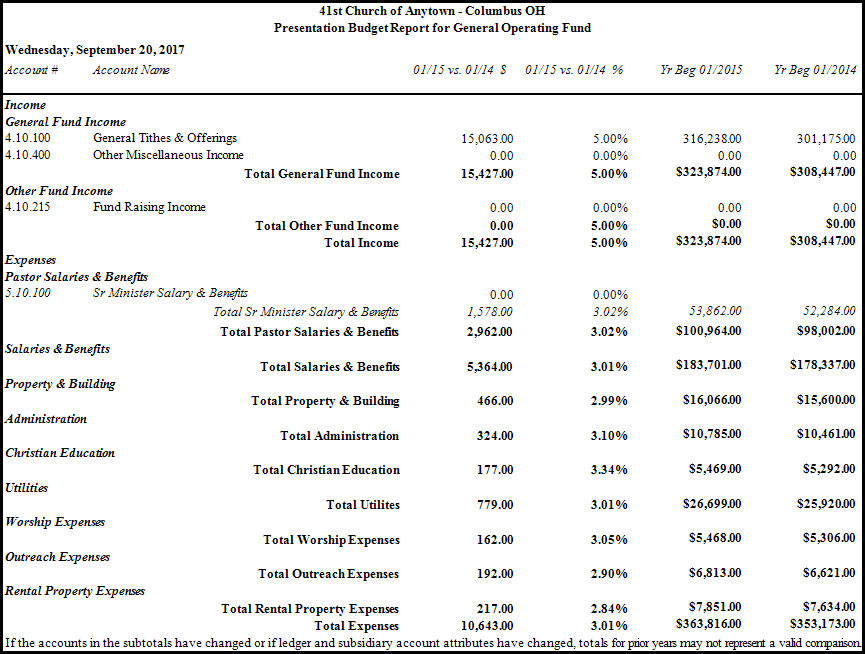
The Budget Report takes the budgeted amounts entered on the Budgets screen and presents them into a printable format across a selected date range and report layout.
To view or print the Budget Report:
- From the Button Bar at the top of the screen either:
- Choose Reports
- Then Budget
OR
- Choose Budgets
- Then Budget Report
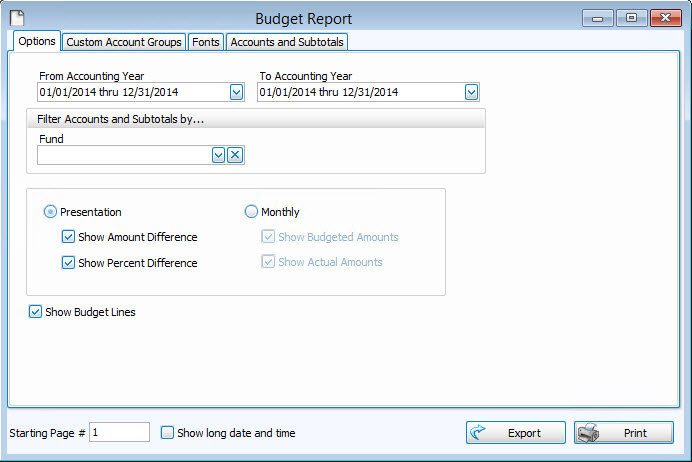
- Choose a date range using the From Accounting Year and To Accounting Year boxes. If you select a date range of at least one year, you will be able to get additional columns that compare the years' budget figures to the one selected in the To Accounting Year box.
- To Filter Accounts and Subtotals by the Fund, click the dropdown box and choose the desired fund name. The report will show results pertaining only to the fund and accounts in the chosen fund name.
- Choose either a Presentation, or a Monthly layout to set the appearance of the Budget Report.
- The Presentation Budget Report shows the Budget Amount and Budget Percentage differences between the amount of years chosen. If only a one-year date range is applied, the Budget Report will show the budget amount for only the selected year. However, when you select a date range that expands further than one year, additional lines will show the differences between the years. Expanding your date range to more than one year then makes the options to Show Amount Difference and Show Percentage Difference applicable. To show on the report, click to place a
 checkmark next to each desired option.
 - The Monthly Budget Report can Show Budgeted Amounts, Show Actual Amounts, or both, according to the option marked with a check. Click to place a check next to each desired option. Expanding the date range to more than one year will then reveal one additional line of monthly figures for each selected year.
- Click to place a checkmark next to Show Budget Lines, to reveal this line.
As your Church discusses budget amounts, you can use a printout of the Budget Report to manually write discussed amounts on preprinted blank lines on the report.
- Choose any of the following tabs to apply additional settings:
If the group you wish to choose is not there, you can even add a new group by clicking + Custom Account Groups button, and adding to the new group only the accounts you wish the report to show.
Change the size and style of the font that prints on the report.
Accounts and Subtotals
Show or hide the history and budget lines for any Accounts and Subtotals on the report by making selections on this tab. This tab is similar to the Detail tab. You also have 4 separate buttons to check or uncheck all Accounts and/or all Subtotals.
Once you have made all of your selections, click Print to view a Print Preview and then proceed in sending the file to your printer. You can also Export most reports and/or Send via Email as a file to be used outside of Church Windows.